Full Instructions for Playing "Investigating Atrocity"
The simplified set of instructions is available on the “Play Now” webpage. This is a more elaborate set of instructions, particularly for people who do not have gaming experience.
Once the simulation loads on your browser (automatically), press the Spacebar key or click anywhere within the WebGL (play) screen to begin. You will need to read and agree to the Disclaimer and End User License Agreement (EULA), which has been kept quite simple and readable.
You can enlarge the WebGL screen by clicking on the blue box on the bottom right.
Feel free to review the Settings page before going to the Scene Select page. Start at Scene 1 if you are new to “Investigating Atrocity”. This first scene is a briefing from the Chief Military Observer (CMO) where you only need to click the right arrow to progress to the next slide. For other scenes you will need to move around. Scene 2 allows you to move around only after you finish your meeting with the CMO.
Movement
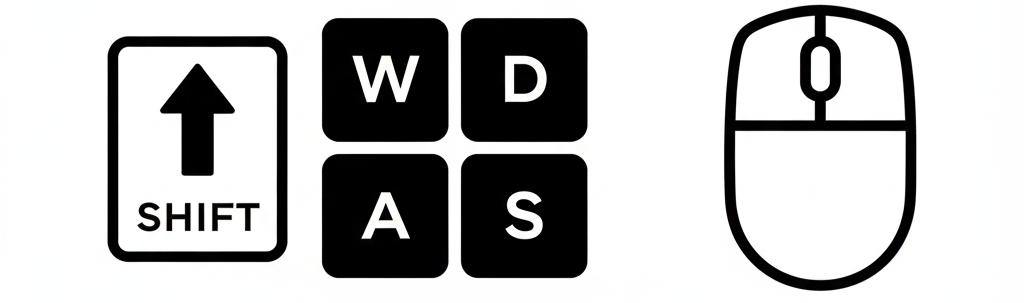
Once your selected scene loads, move your mouse (any direction) to look around.
Movement of the avatar is controlled by standard WASD keys or arrow keys. Movement is in the direction the camera points, and you move the camera angle with your mouse. Moving the cursor to the right of the avatar moves the camera counter-clockwise and moving it to the left moves it clockwise; moving the cursor higher points the camera up (moves it lower to the ground) and moving the cursor down tilts the camera down.
To move the avatar, press the movement keys. For example, hold the W key to walk the avatar forward. You can change direction by moving the mouse. This applies to all movement keys.
W: Walk Forwards (to the position the camera is looking at)
A: Walk Leftwards (relative to camera)
S: Walk Backwards (relative to camera)
D: Walk Rightwards (relative to camera)
Alternatively, you can also use the four arrow keys to move forward, backwards, left and right.
If the avatar walking is too slow, hold SHIFT (along with a movement key) to run, again moving the mouse to direct the avatar if desired. Running by pressing SHIFT can be done with all movement keys.
Note that in some cases, avatar movement controls are taken away from you for narrative purposes. This is evident in Scene 1 where you are shown a presentation. Similarly for the beginning of Scene 2, where you can still use the mouse to move the camera around, though it will not alter the avatar’s direction. However, you can hold the SHIFT key to force the avatar to run, while still not being in control of its movement direction. Finally, during interactions (section below), like dialogue with non-playable characters, all controls are taken away to ensure the interaction is carried out.
Press the H key to show or hide a short list of control options.
Interactions
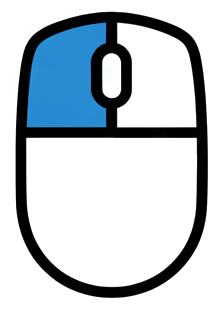
When interacting with a NPC (non-playable character) select the desired option (line) with your mouse (e.g., to reply to a dialogue prompt). If no options are displayed, simply click anywhere on the screen to advance to the next dialogue text. If you wish to see a character’s complete dialogue without waiting for the NPC to finish speaking, or for the words to finish typing, click anywhere on the screen. You will, however, have to select one dialogue option when presented with them.
Camera


Scene 4 (village) has a camera feature, allowing the player to take pictures. However, these pictures are not currently stored. To toggle the camera on and off, press C. A box appears when the camera is turned on (see right image above). To take a picture of an object, simply click with the left mouse button. The photo you’ve taken will then show on the screen. To remove it, click the left mouse button once more. To exit Camera mode, press C again.
Mini Map
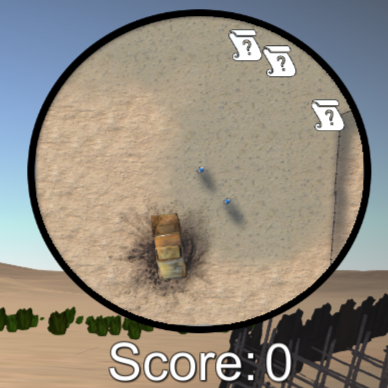

When in most scenes, the top right of the screen will display a small map. This will show an overhead view of your surrounding area, as well as the locations of interactions, displayed as question mark icons. If you get lost when playing, use this to get your bearings and also to get insight about the location of clues.
Pause Menu
Pressing the escape (Esc) key will pause the simulation and bring up the Pause Menu. To leave this menu and go back to the game, simply press the Esc key again or click on the Resume button. If you wish to change the current scene, the Select Scene button will take you back to the Scene Selection page where you can enter whichever scene you like. The button below Scene Select is the Brief & References button. This will show you the original (Scene 1) brief with information relevant to your mission in Carana for you to consult again. The last slide gives internet links to UN training materials. In the menu, the Settings button (below Brief & References) will allow you to adjust the audio, graphics, and (written) language settings, just like in the Main Menu. Finally, you can choose to Quit the simulation. However, you will lose the score that you have achieved so far. Also, you will need to reload the webpage (circular arrow on your browser toolbar URL line or press Ctrl+R for refresh) if you wish to play again from the start.
Forcing an Exit:
If you find yourself stuck, with the avatar unable to move or the simulation unable to progress in any way, attempt to use the Pause Menu to change the scene. This may fix the problem. If doing so did not fix the problem, or if you are unable to open the Pause Menu, you will need to refresh the page (restart the simulation) using the circular symbol next to the Home button at the top of the screen.
Normally, a player proceeds sequentially from Scene 1 to 6. You will use the information that you gain from the first five scenes to fill out the final report in Scene 6, which also gives you a score for both your gameplay and your report. You can play this over as many times as you wish to get a better score and learn more about peacekeeping.
Enjoy the simulation!